
Images in HTML web page ka design aur look better banate hain. Images in HTML ka use karke web pages ko zyada attractive aur informative banaya ja sakta hai.
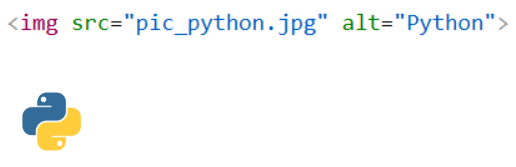
HTML Image Syntax
Images in HTML ko add karne ke liye <img> tag use kiya jata hai.

-
<img>tag image embed karta hai -
Ye empty tag hota hai (closing tag nahi hota)
Isme 2 important attributes hote hain:
-
src→ image ka path -
alt→ image ka alternate text
The src Attribute
Images in HTML me src attribute batata hai ki image kahan se load hogi.
Agar image nahi milti, to broken image icon aur alt text show hota hai.

The alt Attribute
Images in HTML me alt attribute alternative text provide karta hai.
Alt text tab show hota hai jab:
-
Image load nahi hoti
-
Internet slow hota hai
-
Screen reader use kiya jata hai
Example:

Image Size (Width & Height)
Images in HTML me image ka size define karna important hota hai.
Style attribute se:
Direct attributes se:
<img src=”img_boy.jpg” alt=”Boy in jacket” width =”500″ height =”600″>
Tip: Hamesha size specify karo, warna page load hote waqt layout flicker ho sakta hai.
Width/Height vs Style
Dono methods valid hain, lekin CSS style use karna better hota hai kyuki CSS se image size easily control kiya ja sakta hai.
Image in Another Folder
Images in HTML me image kisi aur folder se bhi load ki ja sakti hai.
Image from Another Website
External website se bhi Images in HTML load ki ja sakti hain.
Note: External images copyright issues create kar sakti hain aur kabhi bhi remove ho sakti hain.
Animated Images
Images in HTML me animation ke liye GIF images use ki ja sakti hain.
<img src=”programming.gif” alt=”Computer Man” style=”width:48px;height:48px;”>
Image as Link
Images in HTML ko hyperlink ke roop me bhi use kiya ja sakta hai.
Example:

Image Floating
CSS float property se Images in HTML ko left ya right side par place kiya ja sakta hai.
Right side:

Left side:

Common Image Formats
| Abbreviation | File Format | Extension |
|---|---|---|
| APNG | Animated Portable Network Graphics | .apng |
| GIF | Graphics Interchange Format | .gif |
| ICO | Microsoft Icon | .ico |
| JPEG | Joint Photographic Experts Group | .jpg, .jpeg |
| PNG | Portable Network Graphics | .png |
| SVG | Scalable Vector Graphics | .svg |
HTML Image Maps
Images in HTML me image maps ka use karke image par clickable areas bana sakte ho.
Image Maps
<map> tag ek image map define karta hai. Isme <area> elements ke through clickable regions define kiye jate hain.
Image
Image ko <img> tag se insert kiya jata hai aur usemap attribute add kiya jata hai.
Example:

usemap ki value # se start hoti hai aur image map ka naam batati hai.
Image Map Create Karna
<map> element image map banane ke liye use hota hai.

name attribute ki value same honi chahiye jo <img> ke usemap attribute me hai.
Areas
Clickable areas <area> element se define hote hain.
Shape
Clickable area ka shape define karna zaroori hota hai.
Possible values:
-
rect→ rectangular area -
circle→ circular area -
poly→ polygon area -
default→ poora region
Coordinates define karke clickable area ko image par place kiya jata hai.
Shape=”rect”
rect ke coordinates pairs me hote hain, ek x-axis ke liye aur ek y-axis ke liye.
Coordinates 34,44 ka matlab hai left margin se 34 pixels aur top se 44 pixels. Coordinates 270,350 ka matlab hai left se 270 pixels aur top se 350 pixels. Ab rectangle clickable area banane ke liye:

Image Map and JavaScript
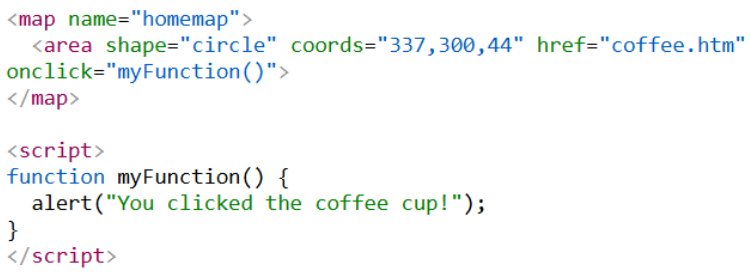
Images in HTML me clickable areas JavaScript functions bhi trigger kar sakte hain. <area> element me click event add karke JavaScript function execute kar sakte ho:
Example:
HTML Background Images
Images in HTML ko background ke roop me bhi use kiya ja sakta hai.
Background Image on an HTML Element
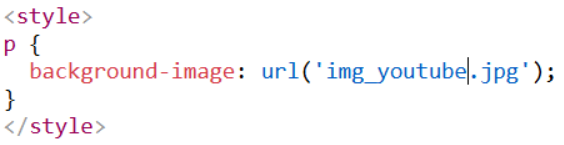
HTML element par background image add karne ke liye style attribute aur CSS background-image property use karo.
Example:

Aap <head> section ke andar <style> element me bhi background image specify kar sakte ho.
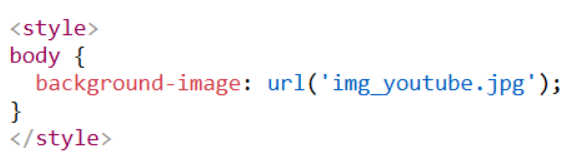
Background Image on a Page
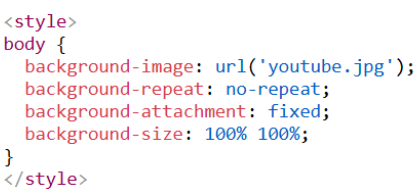
Agar poori page par background image lagani ho to <body> element par specify karte hain.
Example:
Background Repeat
Agar background image element se chhoti hai, to image horizontal aur vertical dono direction me repeat hogi jab tak element ka end na aa jaye.
Example:
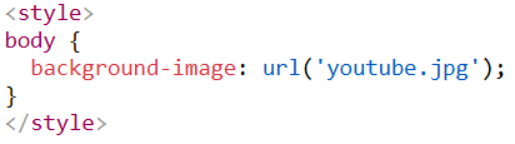
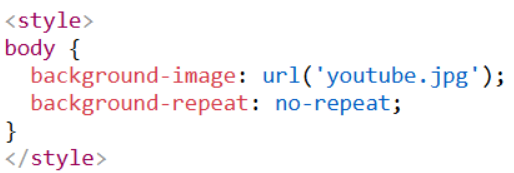
Repeat rokne ke liye background-repeat property ko no-repeat set karo.
Example:
Background Cover
Agar image ko poora element cover karna ho:
background-attachment: fixed;
Example:
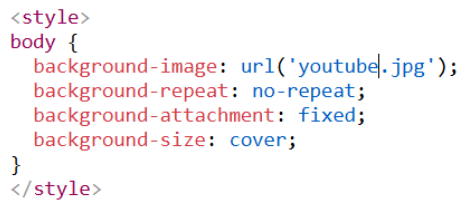
Isse image stretch nahi hoti aur proportion maintain rehta hai.
Background Stretch
Image ko poore element me stretch karne ke liye:
Browser window resize karne par image stretch hogi aur hamesha poora element cover karegi.
Example:
HTML <picture> Element
Images in HTML me <picture> element different devices ke liye different images show karne ke liye use hota hai.
<picture> element ke andar ek ya zyada <source> elements hote hain.
Har <source> me <srcset>attribute ke through different image di jaati hai. Is tarah browser current screen ya device ke hisaab se best image choose karta hai.
Har <source> element me <media> attribute hota hai jo define karta hai ki image kab suitable hogi.
Example:

Note: <picture> ke andar last me <img> element zaroor hona chahiye.
When to Use <picture> Element
Images in HTML me <picture> element do main reasons ke liye use hota hai:
1. Bandwidth
Chhoti screen par badi image load karne ki zaroorat nahi hoti, isliye browser appropriate image choose karta hai.
2. Format Support
Alag browsers different image formats support karte hain. <picture> element multiple formats define karne ki flexibility deta hai.
Example:
Browser pehla recognize hone wala format use karega:
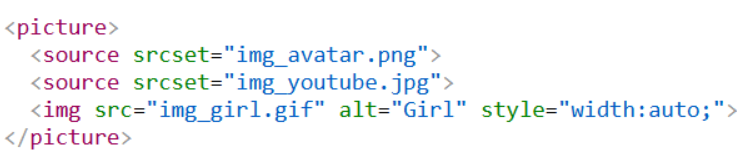
Note: Browser pehla matching <source> element use karta hai aur uske baad wale <source> elements ignore kar deta hai.
Is tarah Images in HTML web pages ko visually attractive banate hain aur developers ko images ko display, style aur control karne ke multiple flexible options provide karte hain.